Results grid
Browsing a table without writing SQL
Double-click a table in the schema tree to browse it. Paging and click-to-sort
headers are pushed down to Postgres as ORDER BY / LIMIT / OFFSET, so a
hundred-million-row table costs the same as any other single page.
The SQL that produces the view sits in the editor, so you can always see what ran.
Filtering rows
While you browse a table, press Ctrl+F in the grid (Cmd+F on macOS), or pick Filter rows… in the command palette. A small editor opens: pick a column, a comparison and a value, then press Enter or Apply. The comparisons depend on the column type:
- text columns: contains, doesn't contain, starts with, ends with, =, ≠
- numbers, dates, times and UUIDs: =, ≠, <, ≤, >, ≥
enumcolumns: = or ≠ a label picked from a dropdownboolean: is true, is false- anything else (
json, arrays, ranges, …): contains, doesn't contain, which search the value's text - every column: is null, is not null
The editor shows the SQL the condition adds before you apply it, and flags a malformed value (a date gets a calendar, a bad number is caught) before anything is sent.
Each applied condition becomes a chip in one thin line above the grid, and rows
must match all of them. Click a chip to change it, click its ✕ to remove it, or
use Clear all. The conditions run on the server as part of the page query,
so paging and sorting keep them, and the whole statement appears in the editor.
Hover the line to see the full WHERE.
The line appears whenever something filters the rows. To keep it up all the time, with + Filter always in reach, click the funnel in the status bar next to the page controls.
For a quick filter, right-click a cell and open Filter: keep rows equal to that value, drop them, or keep only the rows where the column is or isn't null.
Typing a WHERE works too. Edit the browse query in the editor, for example
add WHERE order_count > 6, and run it. What you typed runs as written, and the
tab stays in browse mode with your conditions shown as chips. Simple conditions
(a column compared with a value, IS NULL, IS TRUE, ILIKE '%text%') become
chips you can edit. Anything else, such as an OR, a function call or a
subquery, is kept exactly as you wrote it in a grey chip that you can remove.
This works while the query keeps the browse shape: SELECT * from the same
table, a WHERE, an ORDER BY on one column, and a LIMIT. A query of any
other shape runs as a plain query, and pgNimbus never rewrites it.
Row details
Ctrl+I (Cmd+I on macOS), the form icon at the right end of the status bar, or Row Details on the grid's right-click menu opens the selected row as a form over the window: one line per column, name above value. Tab moves between fields, the ‹ › buttons move to the previous or next row, and Esc closes it.
On an editable result each column gets the same type-aware editor as the grid, plus a NULL toggle. Edits there are always staged, even with safe mode off: Enter or Stage adds them to the staged set, and Esc reverts them first. You then review and commit them from the status bar, with the same conflict check as any staged edit (see Safe mode). While a row has unstaged edits, ‹ › are disabled until you stage or revert.
Primary key columns are read-only there. A value too large for the form shows a preview with an Inspect button that opens the cell inspector.
Column widths
Columns size themselves to their content, up to a limit that keeps one long value from pushing every other column off screen. Drag the divider between two headers to set a width yourself, and that column stops sizing itself and keeps the width you gave it. Dragging is not bound by the limit, so a column holding long JSON can be pulled as wide as you need.
Widths you set are remembered per tab, by column name, so re-running the query, turning a page, or switching to another tab and back keeps them.
Editing cells
| Action | How |
|---|---|
| Edit the selected cell | F2, or double-click it |
| Commit / cancel the edit | Enter / Esc |
| Inspect the full value | Space, or double-click a read-only cell |
Set a cell to NULL |
Context menu |
| Delete the selected row | Delete |
| Show the row as a form | Ctrl+I |
| Copy the selected cells | Ctrl+C |
Results are editable when the row can be identified unambiguously. That covers
browsed tables with a primary key, and also hand-written SELECTs, whenever the
wire metadata proves it is safe to map a column back to its table.
Add a row opens a dialog with the same type-aware editors as the grid.
Type-aware editors
Postgres types get the right control rather than a text box:
enumcolumns get a dropdown of their actualpg_enumlabelsbooleangets a checkboxdateandtimestampget a calendar picker- arrays and composites are syntax-checked before anything is sent
- domains resolve to their base type
Types that Postgres will not assign from plain text, such as inet, cidr,
macaddr, ranges, geometric types, bit strings, xml and tsvector, are sent
through an explicit server-side CAST to the column's declared type. Postgres
itself then validates them and gives you a precise error, rather than pgNimbus
guessing at a client-side conversion.
JSON is a first-class type
json and jsonb cells get more than a text box. Double-click one and the cell
inspector opens straight on its Edit tab, with:
- pretty-printing and minifying
- JSON syntax highlighting
- client-side validation before anything is sent
- a collapsible read-only tree view of the value
Validation is driven by the column's type rather than by what the value looks
like, so a plain text column holding something JSON-shaped still accepts any
string.
Safe mode
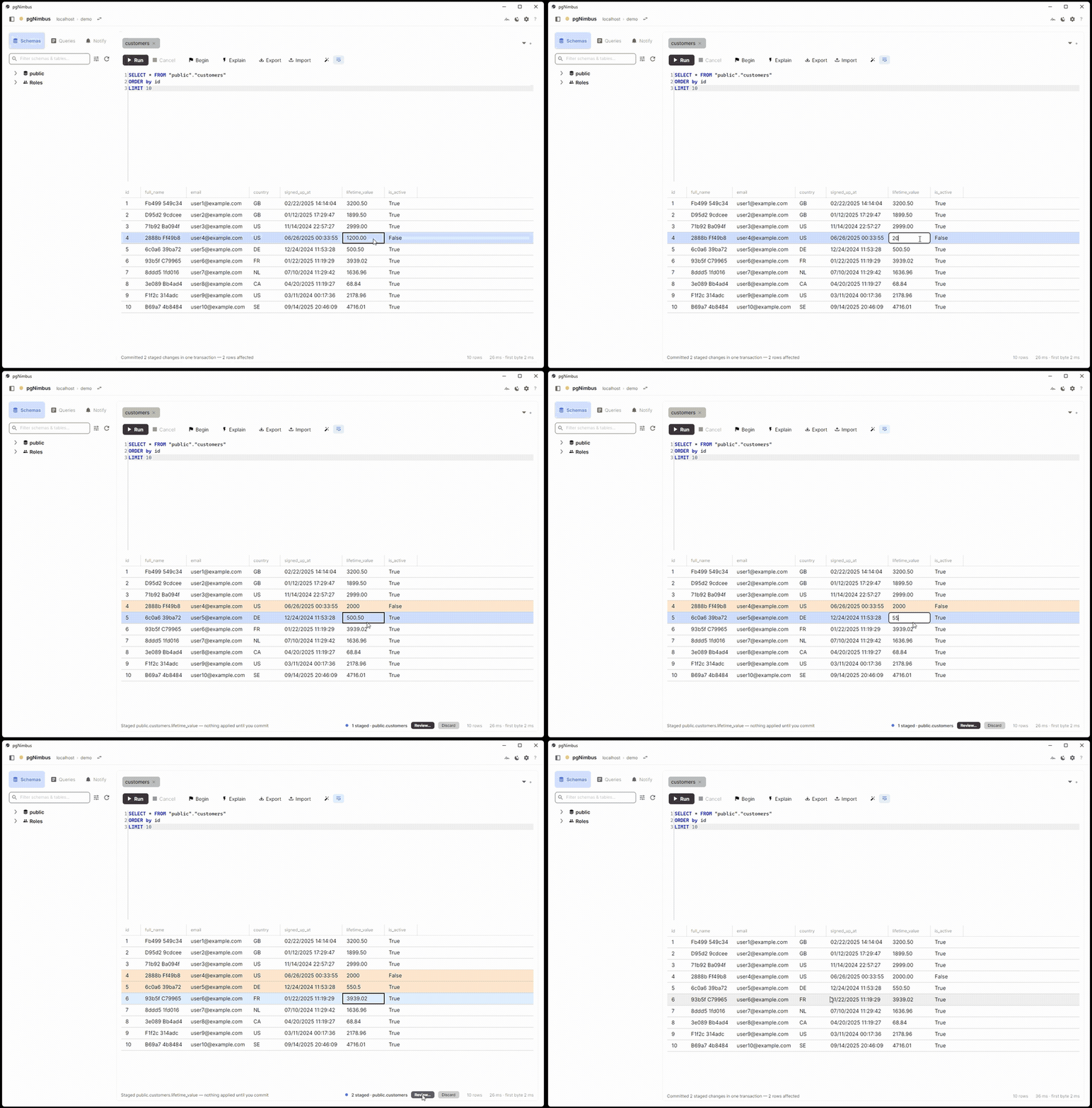
Safe mode is for the "inline edit on production" nerves. With it on, grid edits, inserts and deletes are staged locally instead of being sent:
- dirty rows are highlighted, amber for edited and red for pending delete
- "Review & commit…" shows the exact SQL that will be sent
- everything applies as one transaction, or gets discarded with nothing ever having reached the server
Edits made in row details always stage, whether safe mode is on or not.
Toggle it from the command palette. It has no keyboard shortcut on purpose: flipping it by accident changes whether your edits hit the database immediately.
When someone else changed the row first
Staging takes time, and another session can change or delete a row while your edit to it waits. pgNimbus checks for that when you commit. Before it writes anything, it reads every row you edited or deleted again, locks it, and compares it with the row as it was when you loaded it. That covers every column you loaded, not only the ones you edited, and a NULL counts as a value like any other.
If any row differs, or is gone, the whole commit rolls back. Nothing is applied, including the rows that had no conflict. A dialog then shows each row that no longer matches, column by column: the value when you loaded it, the value on the server now, and the value you staged. You can:
- Reload and restage. The grid reloads with your staged values on top of the current rows. Rows that no longer exist are dropped from the set. Review, then commit again.
- Unstage these rows. Only the rows with a conflict leave the set. The rest stay staged.
- Close. Everything stays staged as it was.
If another session holds one of your rows in an open transaction, the commit waits up to 5 seconds, then rolls back and tells you the row is locked. Inside your own explicit transaction, a conflict undoes only the staged batch. Your transaction stays open.
A commit that succeeds is final. Safe mode has no undo after commit.
Some rows can't be checked or targeted:
- A table with no primary key is read-only. The status bar says so.
- A primary key column whose type pgNimbus can't read (for example, a composite
type it could only show as
<unreadable …>) also makes the grid read-only. - A column pgNimbus can't read is left out of the comparison. The review dialog lists these columns before you commit.
Following foreign keys
Right-click a cell in the grid. On a foreign key column, you can jump to the row it references. On a key column, you can list every row that references it.
Each hop opens a new, pre-filtered browse tab, so you can walk a relationship graph and still have every step you came through.
Cell inspector
Space quick-peeks the current cell in an overlay: the full value, no truncation, with JSON pretty-printed and one-click copy. On an editable cell it also has an Edit tab, which is the comfortable way to edit anything longer than a line.
Transactions
An explicit transaction runs on one held connection, with a status-bar indicator so you always know you are inside one.
| Action | Shortcut |
|---|---|
| Begin | Ctrl+Shift+B |
| Commit | Ctrl+Shift+Enter |
| Rollback | Ctrl+Shift+Backspace |
If a statement inside the transaction fails, pgNimbus rolls the block back for you, so you are never stranded in Postgres's aborted-transaction state where every subsequent statement errors out.
Import and export
Import CSV and JSON files, streamed into the table via COPY, with type
inference on the incoming columns.
Export results, or copy them straight to the clipboard, as TSV, CSV, JSON, a
Markdown table, or INSERT statements.
Export writes every row, not just the ones on screen. The grid holds at most 100,000 rows, and a browsed table shows one page at a time. When the grid doesn't hold the whole result, export runs the query again with no limit and streams the rows straight to the file, so a table of any size exports without filling memory. A browsed table exports with its filters and its sort order, whatever page you're on. The status bar counts the rows as they're written, and Cancel stops the export and deletes the unfinished file.
In two cases the query can't be run again, so the file gets only the rows in the grid, and the status bar says so:
- The query might change data, such as
INSERT … RETURNING. Running it again would make the change twice. - The result comes from one statement of a multi-statement script, or from a query inside an open transaction.
Copying to the clipboard always takes the rows in the grid.