SQL editor
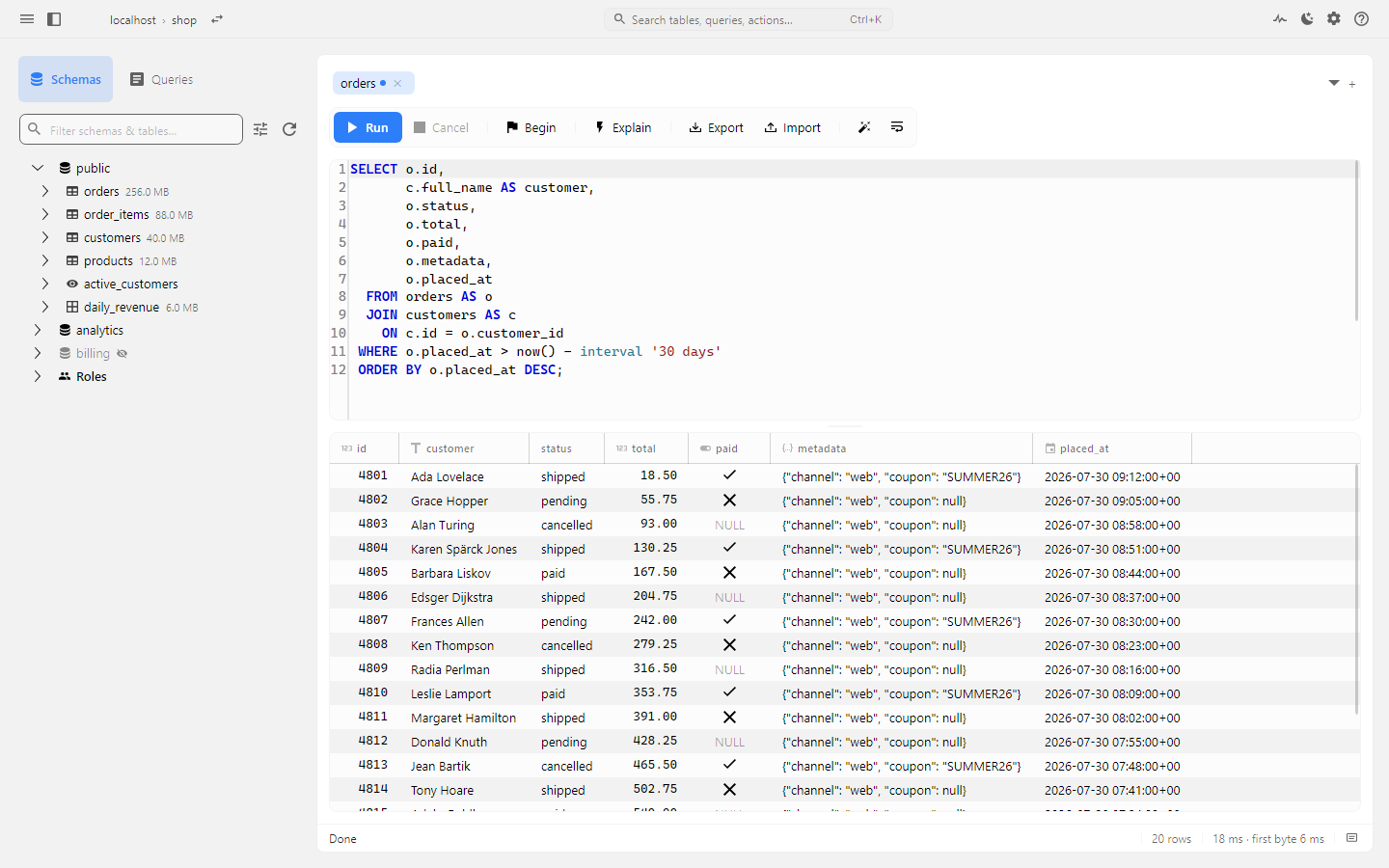
Running SQL
| What you want | How |
|---|---|
| Run the whole tab | Ctrl+Enter or F5 |
| Run just the statement the cursor is in | Shift+Enter |
| Run just the selection | Select it, then Ctrl+Enter |
| Stop a running query | Esc |
Esc genuinely stops the query mid-flight. It cancels on the server rather than only detaching the UI.
Results start rendering before the full set has arrived. Rows stream back in
batches, so the first screenful of a large SELECT appears immediately.
Scripts
Several ;-separated statements run in order on one connection, so session state
carries across them. BEGIN … COMMIT, SET, and temporary tables all behave as
they would in psql. Each statement gets its own result section and timing, and
the script stops at the first error.
Schema tree
The sidebar reads pg_catalog directly, so it shows what Postgres actually has: tables, views, materialized views and partitioned tables, with primary keys and column types. Double-click a table to browse it. Drag any node into the editor to drop in its quoted name.
The filter box above the tree searches the whole database, not just the part you have expanded. Type any part of a schema or table name and the tree narrows to what matches, opening a schema to show a table inside it. Clear the box, or click the x, to get the full tree back.
Right-click gives each kind of object the few actions that make sense for it. A schema offers:
| Item | What it does |
|---|---|
| New Table… | Opens a CREATE TABLE starter statement for that schema in a new tab |
| Copy Name | Puts the schema name on the clipboard |
| Refresh | Reloads just that schema's contents |
| Exclude from Autocomplete | See below |
| Drop Schema… | Drops it, after a confirmation. Fails if the schema still holds objects |
| Drop Schema (Cascade)… | Drops it together with everything inside, after a confirmation that says so |
A table, view or materialized view offers Browse Rows (what a double-click does), Copy Name and its reconstructed DDL; a table also offers the Alter Table dialog. A function offers its source, and an extension offers install or drop.
Completion
Completion triggers as you type, or on demand with Ctrl+Space (literal Ctrl on every platform, because Cmd+Space is Spotlight on macOS).
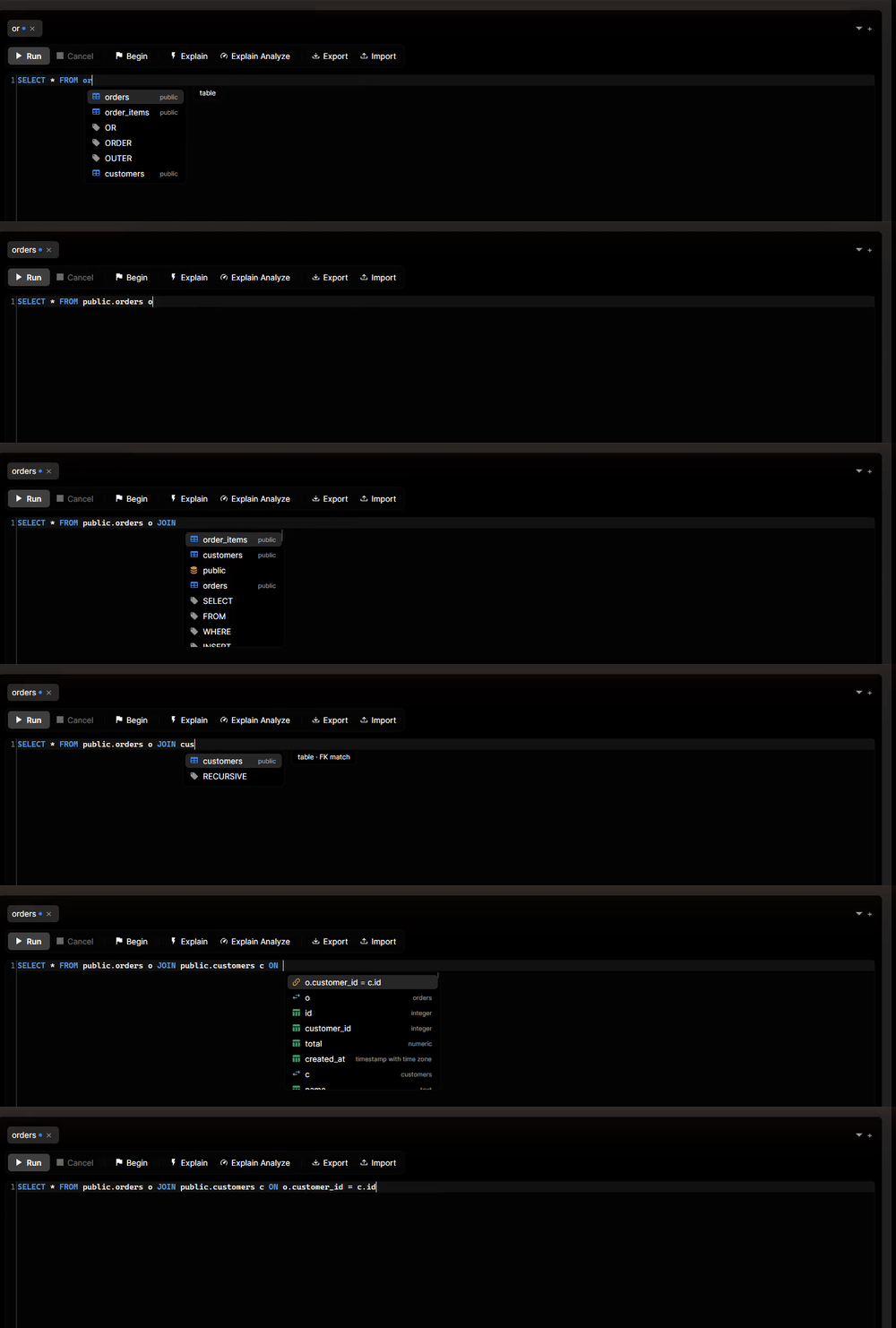
It reads the live catalog, so it knows about:
- schema-qualified tables after
FROMandJOIN - columns scoped to the tables actually in the statement, in
WHERE,ONandORDER BY alias.member access- CTE output columns, including a CTE whose body is
SELECT *, resolved through the catalog - user-defined functions, with signature tooltips
- the
jsonbfunction family
It reads names the way the server does
Completion works on the statement the cursor is in, not the whole tab. Inside it, a name means what PostgreSQL would take it to mean:
- A bare name is folded to lowercase and a quoted one is kept exact. A short
table name is looked up along
search_path, sousersfindspublic.usersand notaudit.users. - A subquery only sees what it can legally see. A
FROMsubquery can't reach its siblings, aLATERALone can, andEXISTS (…)sees every level around it. Columns from an outer level come qualified, likeu.name. - When two joined tables share a column name, you get both, as
u.idando.id. - Some places take exactly one table's columns: the column list of
INSERT INTO t (…),ON CONFLICT (…), the left side ofSET col =andJOIN … USING (…). Only those columns are offered there, minus the ones you've already written.excluded.shows up inON CONFLICT … DO UPDATE. - After
::orCAST(… AS, the list holds only types, your own included.
When a DDL statement you run changes the catalog, the lists refresh on their own. Inside an open transaction they wait for it to finish, because the change isn't visible to other connections until then.
Argument hints
Type ( after a function name, or accept a function from the list, and a hint
shows its parameters with the current one marked. It follows the cursor across
arguments and nested calls and knows named arguments (name => value). When a
function has several overloads, it shows the ones that still fit. Bring it back
with Ctrl+Shift+Space and dismiss it with
Esc.
Enter vs Tab
Tab always takes the highlighted suggestion. Enter takes it only when you chose it: you opened the list with Ctrl+Space, moved to a row with the arrows or the mouse, or typed the start of its name. Otherwise Enter just starts a new line, so finishing a line never inserts a column you didn't ask for. A row that Enter would skip is drawn with an outline instead of a solid fill.
JOIN magic
Two touches that save the most typing. After JOIN, tables connected to what you
already have by a foreign key rank first. After ON, the complete join
condition, oi.order_id = o.id, is the top suggestion, one keystroke away.
Leaving a schema out
A database with dozens of schemas usually has a few that belong to another team, and their tables only ever get in the way of yours. Right-click the schema in the sidebar and pick Exclude from Autocomplete. Its tables, columns and functions stop appearing in every suggestion list, and the refresh gets a little faster too, because those catalog queries are skipped.
The schema stays in the tree, dimmed, with a crossed-out eye next to its name.
Right-click it again to bring it back. The choice is remembered per connection,
so excluding billing on one database says nothing about a billing schema on
another.
Auto-alias
With auto-alias on, completing a table also gives it a short alias
(orders becomes orders o) so the columns you complete next are already
scoped. Toggle it with Ctrl+Shift+A; the status
bar confirms the new state.
Formatting
Ctrl+Shift+F (or Alt+Shift+F, if that is the muscle memory you brought) pretty-prints the statement under the cursor, following sqlstyle.guide's "river" layout: root keywords right-aligned to a common column, content to their right.
The formatter re-tokenizes its own output and compares it to the input, so a format can only ever change whitespace. If the check fails, it leaves your SQL alone.
Editing
Beyond the usual, the editor carries the line operations you expect from a code editor:
| Action | Shortcut |
|---|---|
| Toggle line comment | Ctrl+/ |
| Duplicate line or selection | Ctrl+Shift+D |
| Move line up / down | Alt+↑ / Alt+↓ |
| Delete whole line | Ctrl+D |
| Find / find & replace | Ctrl+F / Ctrl+H |
| Zoom font in / out / reset | Ctrl++ / Ctrl+− / Ctrl+0 |
Commenting follows the convention you are used to. If every non-blank selected line is already commented it uncomments them, otherwise it comments the block at its shared indentation, so the SQL keeps its shape.
SELECT * expansion (Ctrl+Shift+8) replaces the
star in the statement under the cursor with the explicit column list. It resolves
both catalog tables and CTEs, and does nothing at all if a table is unknown,
because a missing expansion beats a wrong one.
Tabs and files
Tabs drag to reorder, browser-style, and the order is restored with your workspace next session.
| Action | Shortcut |
|---|---|
| New tab / close tab | Ctrl+T / Ctrl+W |
| Next / previous tab | Ctrl+PgDn / Ctrl+PgUp |
| Jump to tab 1…9 | Ctrl+1 … Ctrl+9 |
Open a .sql file |
Ctrl+O |
| Save | Ctrl+S |
| Save as | Ctrl+Shift+S |
The dirty marker distinguishes unsaved scratch from diverges-from-the-file-on-disk, so a scratch tab does not nag you to save it.
Nothing you open replaces what you are working on. A saved query, a history entry, generated DDL, a table preview: all of them open in a new tab. That is a project-wide rule rather than a per-feature choice.
Workspace restore
Closing the app never prompts. The next session reopens your tabs exactly as you left them, including never-saved scratch SQL.
Saved queries and history
The sidebar's Queries tab holds saved queries and the query history. History is searchable, pinnable, and scoped per connection. Double-click any entry to open it in a new tab.
To save the query you are looking at, right-click its tab and choose Save Query, or press Ctrl+S. You are asked for a name once. After that, Ctrl+S writes straight through to the same entry, so a query you keep editing stays one row in the list instead of becoming a pile of copies. If you type a name that is already taken, pgNimbus says so and offers to replace that entry.
Ctrl+S follows the tab. A tab you opened from a .sql file
saves back to that file; any other tab goes to the Saved Queries list. When you
want a specific destination, the command palette and the ☰ menu carry both by
name: Save to Saved Queries and Save to File.
Right-click a row in the list to open it in a new tab, rename it, or delete it.
Command palette
Ctrl+K (or Ctrl+P, or the "Search" pill in the command bar) fuzzy-jumps to any table, saved query, recent file, or action.
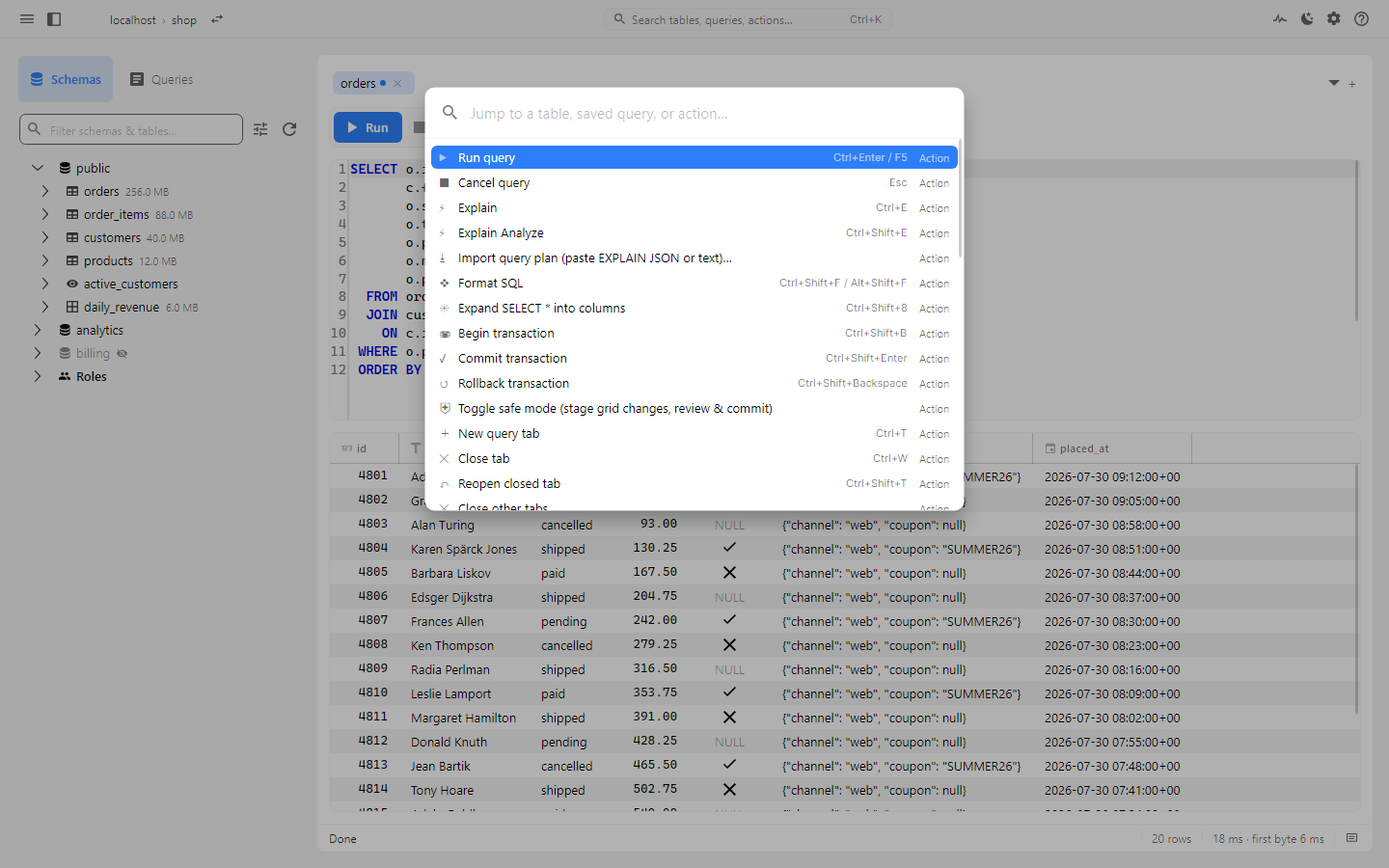
Most features live here rather than on the toolbar. That is deliberate, and it is why the toolbar stays as short as it is. Each action row shows its shortcut, so the palette teaches you the keys for the things you do often.